
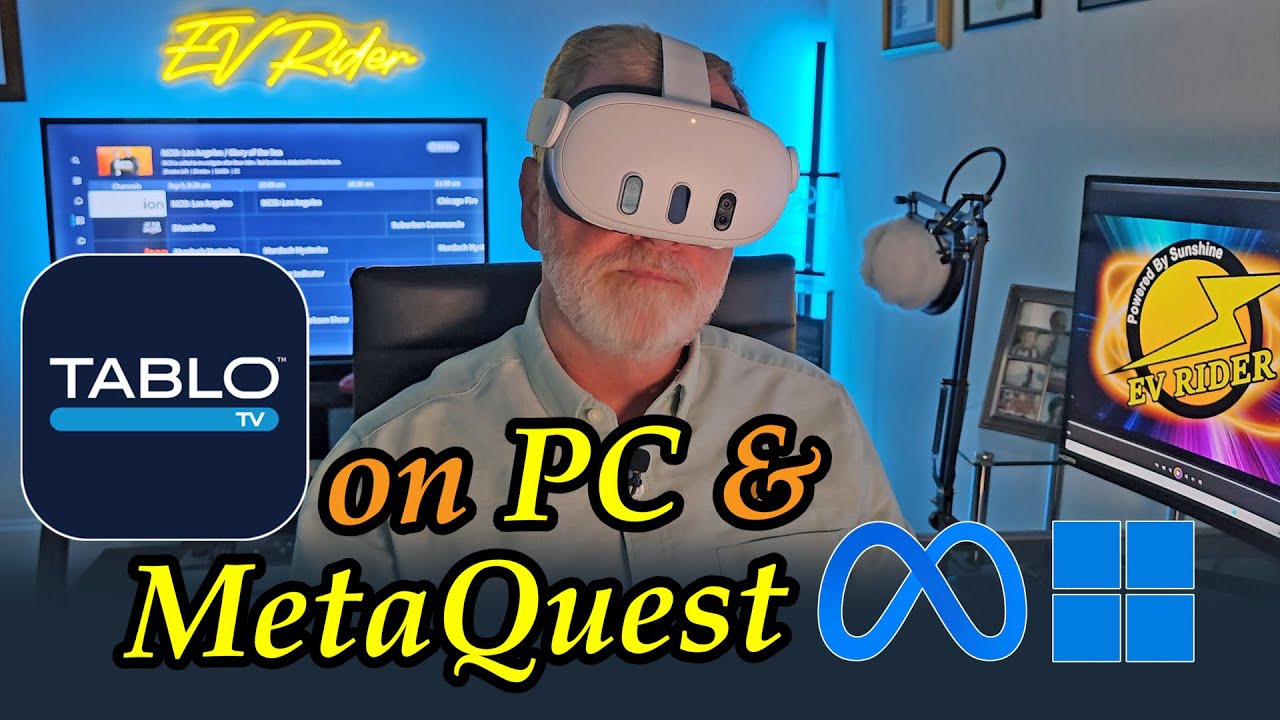



This week we’re taking a break from EVs to do a quick how-to video on a popular over-the-air DVR.
Tablo is probably the slickest implementation yet of an over-the-air DVR, allowing you to watch and record broadcast TV shows, while easily fast forwarding through commercials.
While Tablo works great on most smart TVs, along with Android and Apple smartphones and tablets, the current 4th-gen models don’t offer native apps for Windows 11 or Meta Quest VR headsets.
Luckily there’s an easy workaround on Windows with no hacking or other tricks needed – assuming you have a modern Android smartphone.
Just open Phonelink, which is pre-installed on all Windows 11 PCs. Make sure your phone is showing. If it’s not, follow the set-up procedure. Then click on apps and launch Tablo. See the video at the top of this post for the visuals.

Phonelink will launch the app right on your PC, pulling it directly from your smartphone. So now you can watch your local news or favorite broadcast shows right from your PC, anywhere in the house.

But virtual reality is a much better way to watch video when you’re by yourself. Thankfully, using Phonelink on Meta Quest works just fine – and again – no sideloading or other hacks are needed.
Horizon OS, which is the operating system that all Meta Quest headsets use, offers a variety of Windows virtual desktop solutions, including Horizon Workrooms and Windows app, both of which are free.
For this demo I’m using Horizon Workrooms but apps like Immersed, Virtual Desktop and others should work equally well.
Launch your favorite virtual desktop app on your Meta Quest headset and select your PC. If you haven’t already set it up, follow your remote desktop app’s directions. Now you can open Tablo via Phonelink and videos will play just fine.

Easy, right? For the most part yes, but here are a few things to keep in mind: Virtual desktops and Tablo are both bandwidth hogs so make sure you’ve got a strong, high-bandwidth wifi connection or ethernet to avoid lag or stuttering.
Even with plenty of bandwidth, could still run into issues with if you don’t have a high-end PC and Android phone, due to the graphic and processing requirements that the applications require to run smoothly.
But assuming your phone, PC and connection have the needed bandwidth and processing power, it should all work as expected.
One final note: Product software is constantly being updated so while I have personally verified everything works as expected on Sept. 17, 2025, it’s possible Android, Tablo, Microsoft or Meta will introduce a software update at some point that impacts whether these components continue working with one another. Ideally we’ll see Tablo introduce native applications for Windows 11, Meta Quest and other XR devices at some point.
For any of you looking for an in-depth review of the Tablo unit and its software, see fellow YouTuber Antenna Man’s video review below.
‘By the way, for you MetaQuest experts thinking, “why didn’t he just sideload Tablo via SideQuest?” I tried but Tablo is one of those Google-specific .APKs that fails to install on Meta Quest’s fork of Android. If you figure out a workaround let me know in the YouTube comments.
And speaking of XR (extended reality), just in case you didn’t know, some EV Rider episodes are available in 3D spatial video on any VR headset or MR glasses that support YouTube VR. Some 360-degree episodes and clips are also available.